How to Fix Google Antigravity’s Location Restriction
If Google Antigravity blocks you because of a location restriction—even after you change your network route or Google Account—work through the checks below in order.
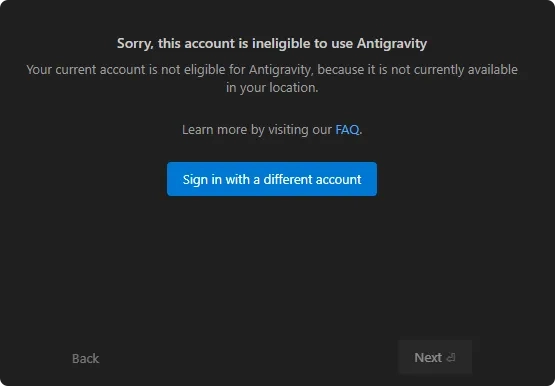
This is the message I encountered:
Sorry, this account is ineligible to use AntigravityYour current account is not eligible for Antigravity, because it is not currently available in your location. Learn more by visiting our FAQ.Continue with different accountHaving trouble? Let us knowThis guide includes personal troubleshooting experience. Antigravity availability and Google’s account-country rules can change. Always check the official Google Antigravity FAQ and the country shown on your own account.
1. Check your network location
Start with the Antigravity FAQ and confirm that your current public IP is in a supported country or territory. Google’s FAQ also specifically tells users to check the country shown on the Google Terms of Service page.
In my experience, a U.S. network route generally works, but that is not an official guarantee. During troubleshooting, verify that:
-
Your public IP is in a country or territory on the current support list.
-
TUN mode is enabled correctly in your proxy client.
-
You temporarily use global routing to eliminate rule-based routing as a variable.
-
Google and Antigravity requests are not leaving through a different regional exit.
The country shown by an IP-checking website does not prove that every request uses the same route. Split-routing rules may still send some Google traffic through your local connection or another node.
If the network looks correct and the error remains, check the country associated with the Google Account itself.
2. Check the country associated with your Google Account
Open the Google Terms of Service, sign in with the account you plan to use, and check the country version shown on the page.
Do not infer this value from the network used when the account was created or from your current proxy location. Some accounts may show China; accounts with long-standing information connected to mainland China or Hong Kong should also be checked directly on this page.
Request a country-association change
If the displayed country is outside Antigravity’s current availability, open Google’s country-association request form.
Submit accurate information and request the country where you genuinely and consistently live, work, or study. Avoid frequently switching between countries. If the form asks why the account should be associated with that region, explain your real circumstances rather than adding unrelated details.
I tested this process with two Google Accounts. Both regained access to Antigravity after their country association was successfully changed. That is a personal result, not a guarantee for every account.
Wait for and verify the result
Google needs time to review the request. In my tests, a response usually arrived within about an hour, although some cases may take longer. There is no guaranteed processing time; if nothing arrives immediately, wait and check again within roughly 24 hours.
After receiving a confirmation email, return to the Google Terms of Service and verify that the displayed country has actually changed. A submission confirmation or email should not replace this final check.
Reinstall and sign in again
Once the correct country is visible, reinstall and restart Antigravity, then sign in again with the updated account. This resolved the location restriction for both accounts I tested.
3. Check other location-related account data
If both the network exit and account association are correct but sign-in still fails, review other Google Account data related to countries and addresses.
Google Payments country and profile
Open Google Payments settings and review the country, payments profile, name, and address.
If you find a profile that is obsolete, invalid, or incorrect, handle it according to your real circumstances. Do not remove a valid profile that you still need merely for troubleshooting.
Saved payment methods
Open Google Payments payment methods and look for expired, closed, invalid, or unused methods.
Delete a payment method only when you know it is no longer valid or needed. Do not remove a working method simply to force a region change.
Google Payments addresses
Open the Google Payments address book. Review old addresses from other countries or regions and remove only entries that are genuinely obsolete. Keep information that is accurate, valid, and still required.
Home and work addresses
Open Google Account personal information and check your home address, work address, and any other saved address data. Update or remove old information only when it is no longer accurate.
Complete troubleshooting order
-
Check the current availability list in the Antigravity FAQ.
-
Confirm that your public IP is in a supported location.
-
Enable TUN mode in your proxy client.
-
Temporarily use global routing while troubleshooting.
-
Check the account country on the Google Terms of Service.
-
If it is incorrect, submit a country-association request.
-
Wait for Google and verify the final country on the Terms page.
-
Reinstall Antigravity and sign in again.
-
If access still fails, review Payments settings, payment methods, the address book, and Google Account personal information.
-
Restart Antigravity and test the account again.
Summary
When you see Your current account is not eligible for Antigravity, repeatedly changing proxy nodes may not solve the problem. A supported network exit does not necessarily mean that Google associates the account itself with a supported country.
The two most important checks are:
Network exit country → Google Account country association
Changing the account association resolved the issue for both accounts I tested, but availability and enforcement rules may change. Check the official Google Antigravity FAQ before troubleshooting and rely on Google’s latest account information.